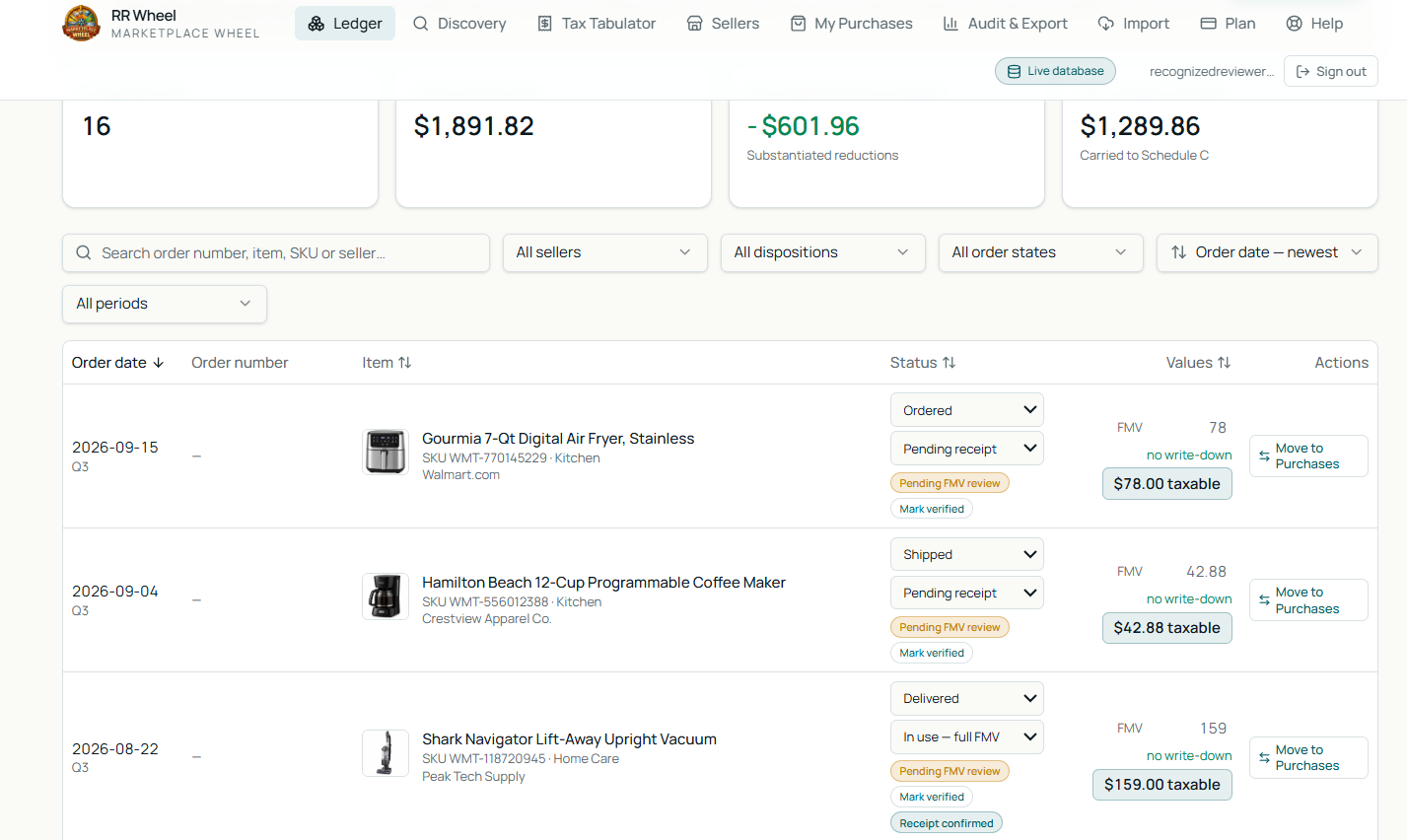
This guide walks you through importing your Walmart Recognized Reviewer claims into RR Wheel. Syncing is a two-step process:
• Step 1: Full back-fill — Run this once after installing to bring in your complete claim history across this year and last year.
• Step 2: Routine sync — Quick catch-up for everyday use. Checks the last 5 days and updates delivery status in seconds.
Before you start: Make sure you are signed into your RR Wheel account (at app.marketplacewheel.com) in this same Chrome browser. If you don't have the site open, simply click the RR Wheel icon in your toolbar and click Launch RR Wheel.
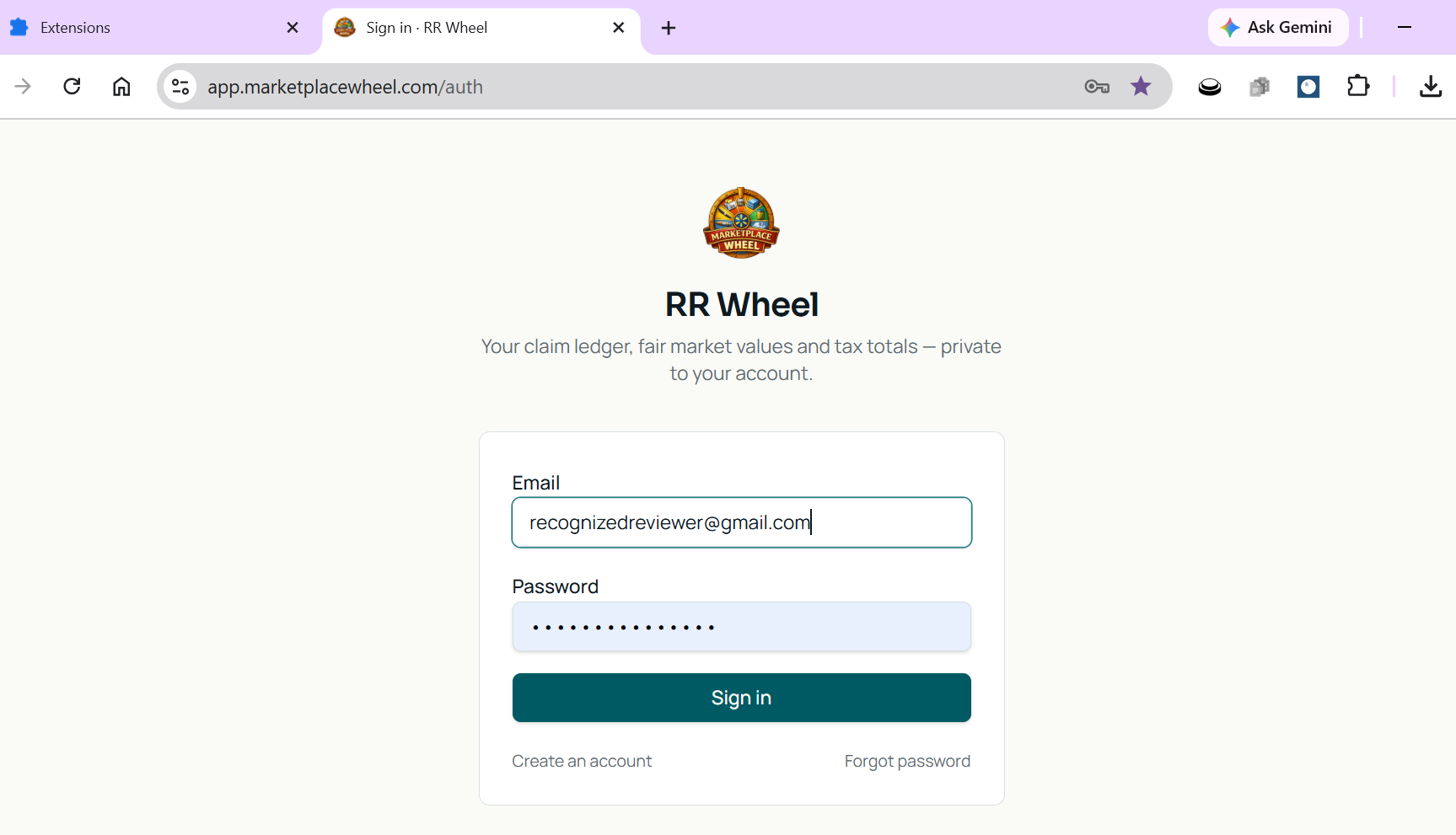
Step 1. Sign in to Walmart and open Purchase History
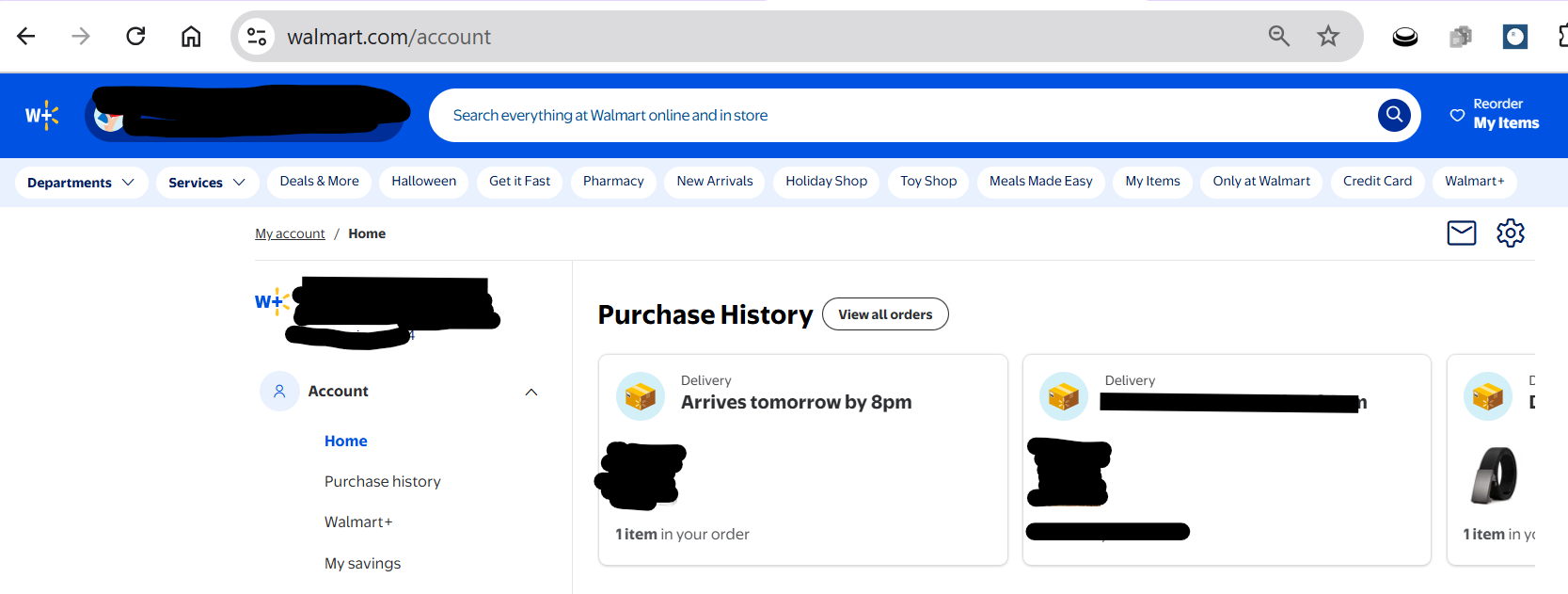
1. In the same Chrome window where you installed RR Wheel, go to walmart.com and sign in.
2. Open your Account menu and select Purchase History (or visit walmart.com/orders directly).
3. Keep this tab open while syncing.
Privacy note: RR Wheel operates directly inside your local browser. It only reads your own order cards to identify Recognized Reviewer claims. It never asks for, captures, or transmits your Walmart password or payment details. Regular purchases are automatically screened out so they never mix into your tax records.
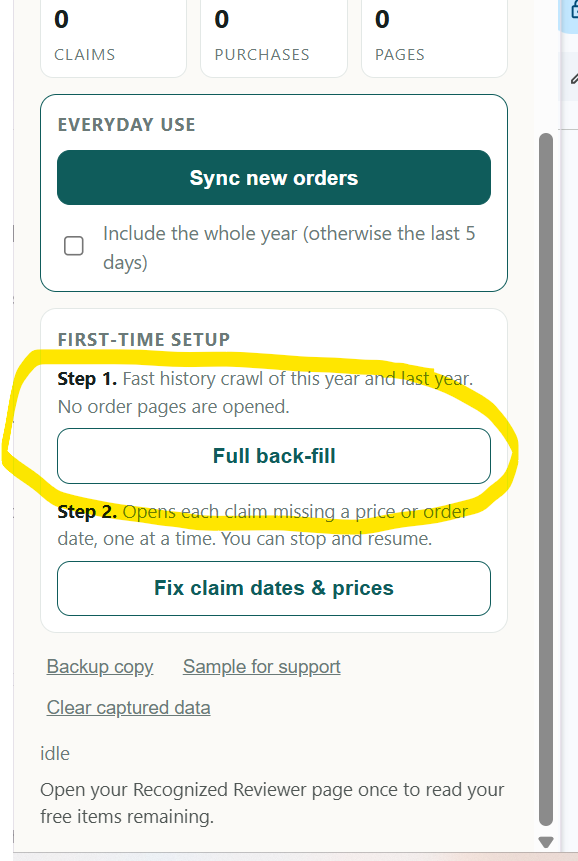
Step 2. Run the Full Back-Fill (First-Time Setup)
1. Click the RR Wheel icon in your Chrome toolbar to open the extension popup.
2. Locate the two sync options in the popup:
• Full back-fill (Step 1)
• Routine sync (Step 2)
3. Click Full back-fill.
4. The button turns dark teal with a live spinner and reads "Crawling...".
5. Watch the live counter climb as orders are processed:
• Pages read: Number of order history pages scanned.
• Claims found: Recognized Reviewer items detected and saved.
• Purchases found: Personal retail purchases screened out and excluded from your tax ledger.
Helpful tips during sync:
• You can click away: If you click outside the popup, Chrome closes the small window, but the sync keeps running in the background. Click the RR Wheel icon anytime to reopen the popup and see current progress.
• Need to pause? Click Stop at any point. When you are ready to continue, click Resume—it picks up exactly where it left off without duplicating orders.
• Completion summary: When the back-fill finishes, the popup displays a final report: "N orders reviewed across P pages (C claims, U purchases; X new)".
Step 3. View your synced claims in RR Wheel
1. In the extension popup, click Launch RR Wheel (or switch to your open tab at app.marketplacewheel.com).
2. Click the Ledger tab in the top navigation.
3. Your claims now appear organized in your ledger with:
• Item title and retail thumbnail
• Claim and order dates
• Order number and item value (initial fair market value)
• Delivery status
4. For ongoing check-ins: Whenever you claim new items on Walmart, simply open the popup and click Routine sync (Step 2). It checks the last 5 days and brings in your newest items in seconds.