
For Recognized Reviewers · October 2026
1. Install RR Wheel
Choose the method that matches how you received RR Wheel:
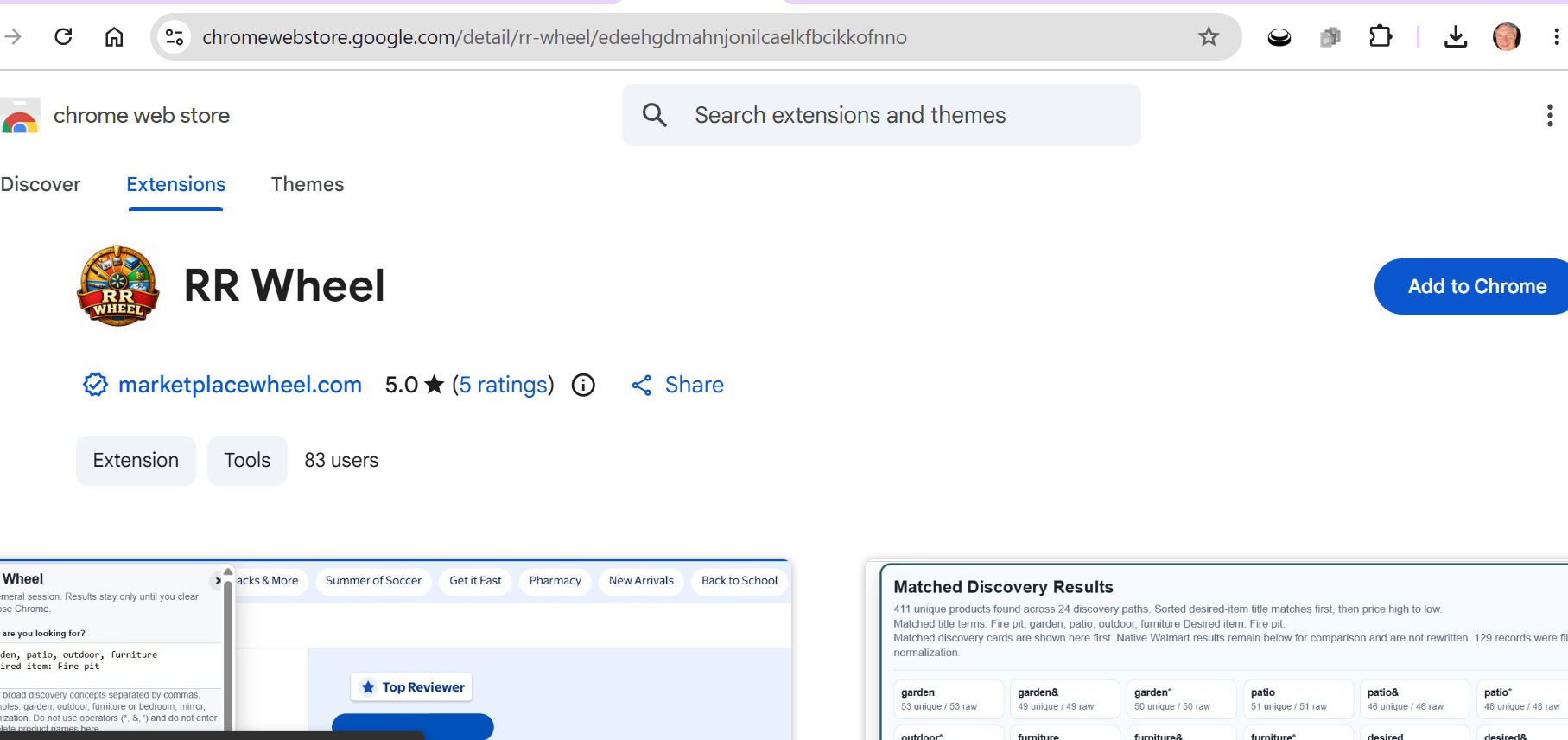
Method A: Chrome Web Store (Public Release)
- Open Google Chrome and go to the Chrome Web Store.
- Search for “RR Wheel” and select the extension with the Marketplace Wheel badge.
- Click Add to Chrome, then click Add extension in the confirmation prompt. Chrome installs the extension automatically, with no unzipping or manual file handling needed.
2. Pin RR Wheel to your toolbar
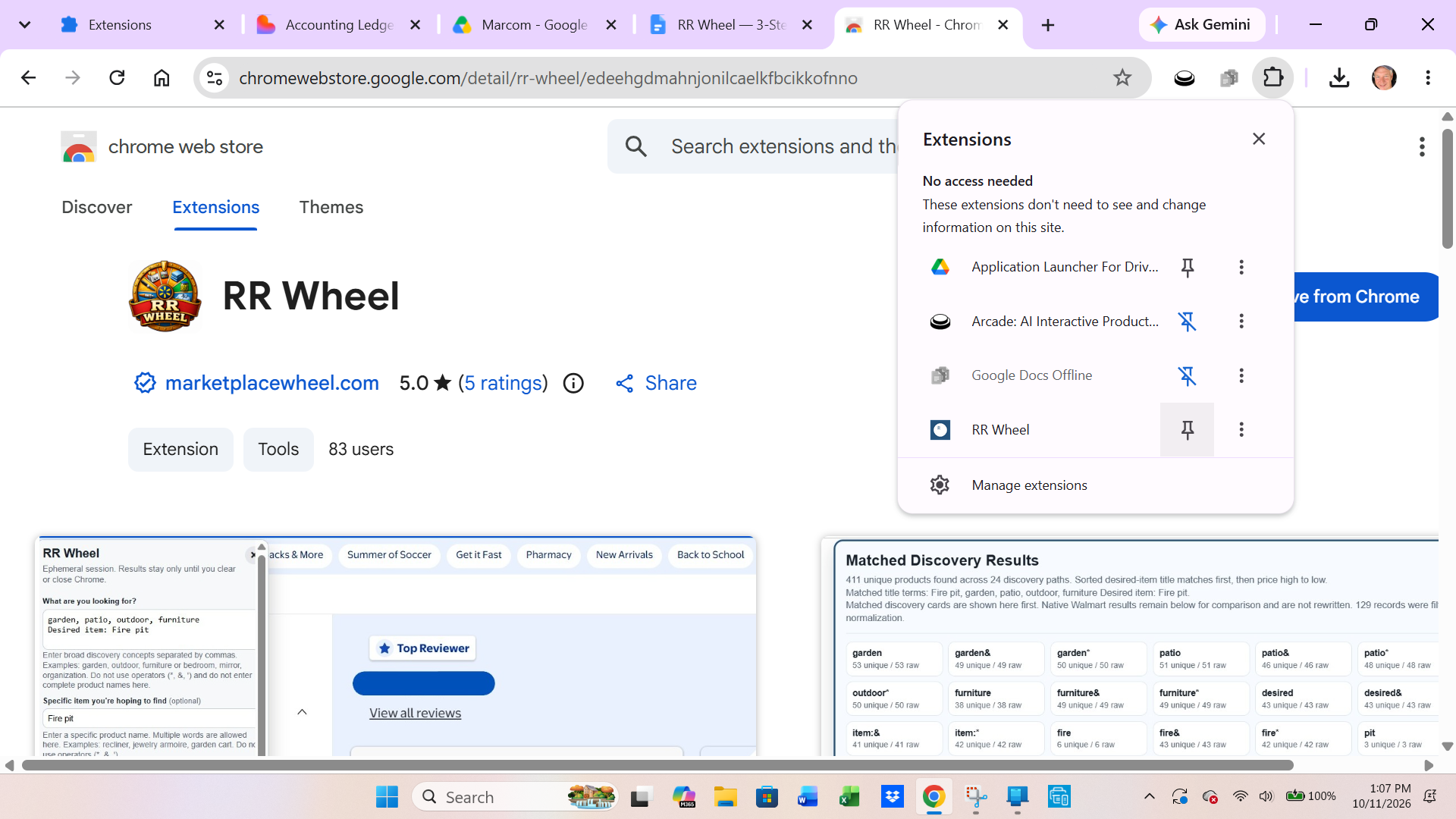
- Click the puzzle-piece Extensions icon near the top-right corner of Chrome, next to the address bar.
- Find RR Wheel in the list and click the Pin icon beside it.
- The teal Marketplace Wheel badge will now stay visible in your Chrome toolbar for quick one-click access.
3. Launch RR Wheel and create your account
- Click the RR Wheel badge in your Chrome toolbar to open the extension popup.
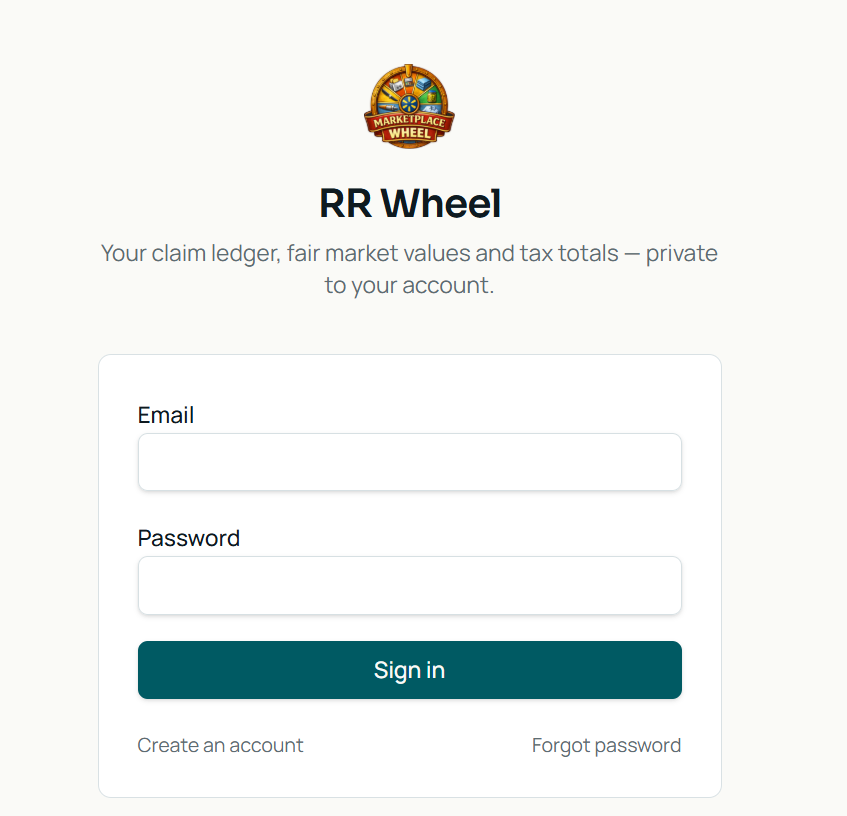
- Click the teal Launch RR Wheel button at the top of the popup. This opens the web application in a new browser tab.
- On the welcome screen, select Create account (or Sign in if you already have one) and enter your email address. First-time signups automatically receive a 30-day free trial.
- Keep the app open and signed in during capture sessions so your orders and claim records sync smoothly to your private ledger. The extension operates tokenless for security and never stores your passwords or login credentials.
You’re all set!
Your extension is installed, pinned, and linked to your private companion app account.
Next step: Navigate to your marketplace order history (or Recognized Reviewer portal), open the RR Wheel extension popup, and click Full back-fill to begin capturing and organizing your claims and tax estimates.